
ACA Forms Bulk Upload
TaxZerone's Bulk Upload feature lets you file multiple ACA forms at once in
just a few easy steps — it's fast, accurate, and saves you time!
Last updated:
-by Alexia Zepeda | TaxZerone
ACA Forms Bulk Upload at a Glance
- TaxZerone's ACA Forms Bulk Upload feature allows employers and health coverage providers to upload and e-file multiple Forms 1095-B and 1095-C using a single Excel or CSV file, making ACA reporting faster and more efficient.
- T axZerone supports Forms 1095-B and 1095-C, while Forms 1094-B and 1094-C are generated automatically during the filing process, eliminating manual preparation of transmittal forms.
- TaxZerone accepts XLSX, XLS, and CSV files through IRS-ready templates, validates your data for errors before submission, and allows unlimited corrected re-uploads at no additional cost.
- The bulk upload process includes downloading the template, entering employee or recipient information, uploading the completed file, reviewing validation results, correcting errors if needed, and securely e-filing directly with the IRS.
- You can track every submission through the Information Returns Dashboard, with real-time statuses such as In Progress, Transmitted, Accepted, and Rejected.
Affordable Care Act (ACA), employers and health coverage providers must report health insurance coverage information to the IRS each year using Forms 1095-B and 1095-C. For businesses managing coverage for dozens — or even thousands — of employees, filing these forms individually can be time-consuming and prone to errors.
With TaxZerone’s ACA Forms Bulk Upload feature, you can download template, enter your employee data, and upload all records at once using a pre-formatted Excel file. In just a few steps, you can validate, process, and e-file your ACA forms directly with the IRS — with the 1094-B or 1094-C transmittal generated automatically.
Table of Contents
Who must file ACA Forms?
ACA reporting requirements differ depending on the type and size of your organization:
| Employer Type | Form Required | Threshold |
|---|---|---|
| Applicable Large Employers (ALEs) | Forms 1094-C & 1095-C | 50+ full-time equivalent employees |
| Self-insured small employers | Forms 1094-B & 1095-B | Fewer than 50 FTEs but offer self-insured coverage |
| Insurance providers | Forms 1094-B & 1095-B | Any insurer providing minimum essential coverage |
| Government-sponsored programs | Forms 1094-B & 1095-B | Medicare, Medicaid, CHIP, TRICARE, etc. |
Supported Forms for Bulk Upload
TaxZerone's Bulk Upload feature supports all four ACA reporting forms. The transmittal forms are generated automatically — you only need to upload employee-level data.
| Form | Full Name | Auto-Generated |
|---|---|---|
| 1095-B | Health Coverage (individual recipient copy) | Upload required |
| 1094-B | Transmittal of Health Coverage Information Returns | Auto-generated by TaxZerone |
| 1095-C | Employer-Provided Health Insurance Offer and Coverage | Upload required |
| 1094-C | Transmittal of Employer-Provided Health Insurance Offer and Coverage | Auto-generated by TaxZerone |
File Format & Template Requirements
Accepted File Format
TaxZerone accepts xslx, xls, csv files for ACA bulk uploads. A pre-formatted template is provided for each form type — download it from your information returns Dashboard, fill it in, and upload it.
Template Rules
- Always use the current tax year template — codes and fields are updated annually.
- Do not add, remove, or rename columns in the template.
- Each row represents one employee or recipient record.
- Date fields must use the format MM/DD/YYYY (e.g., 03/01/2025).
- SSN and EIN must be entered as 9-digit numbers without dashes.
- Dollar amounts must be numeric with up to 2 decimal places — no currency symbols or commas.
- Leave optional fields blank if not applicable — do not enter "N/A" or "0".
- Remove all blank rows, merged cells, or extra formatting before uploading.
Key Fields Required for Form 1095-C
| Field | Required |
|---|---|
| Employee SSN | Yes |
| Employee Name (First, Last) | Yes |
| Employer EIN | Yes |
| Coverage Offer Code (Line 14) | Yes |
| Employee Share Amount (Line 15) | Yes |
| Safe Harbor Code (Line 16) | Conditional |
| Plan Start Month | Yes |
| Tax Year | Yes |
ACA Bulk Upload — File Multiple Forms in Minutes
With TaxZerone’s Bulk Upload, you can submit multiple Forms 1095-B or 1095-C at once, validate your data for errors, and e-file directly with the IRS — quick, accurate, and easy.
How to Bulk Upload ACA Forms with TaxZerone
Follow these steps to prepare, upload, and e-file ACA forms in one submission:
Step 1: Sign In or Create an Account
- If you're new to TaxZerone, click Sign Up to create your account in just a few minutes.
- Already registered? Simply click Sign In to log in and go to your dashboard.
Step 2: Go to the TaxZerone Dashboard
After logging in:
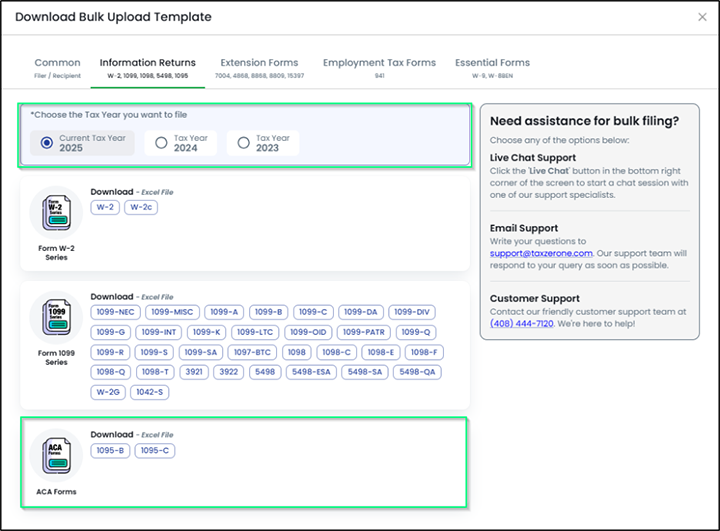
- Click Start in the upper-right corner and navigate to Download.

- Select Information Returns under the Download Bulk Upload Template section.
- Choose the Tax Year, then select the ACA forms you want to download (Form 1095-B or Form 1095-C).
Step 3: Start a New Form from the Dashboard
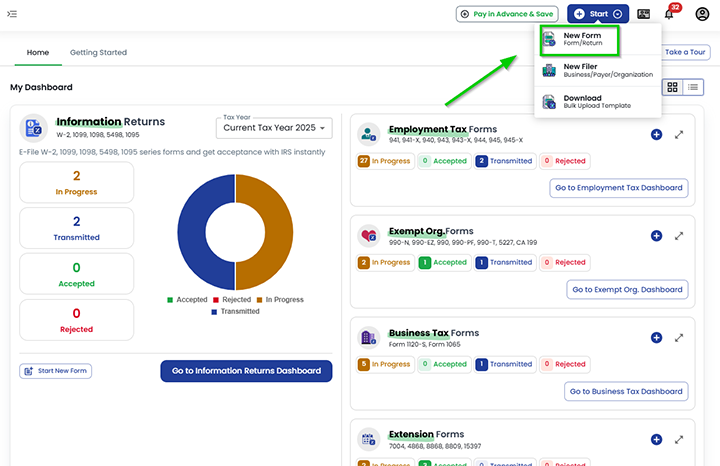
- Click Start and select New Form.
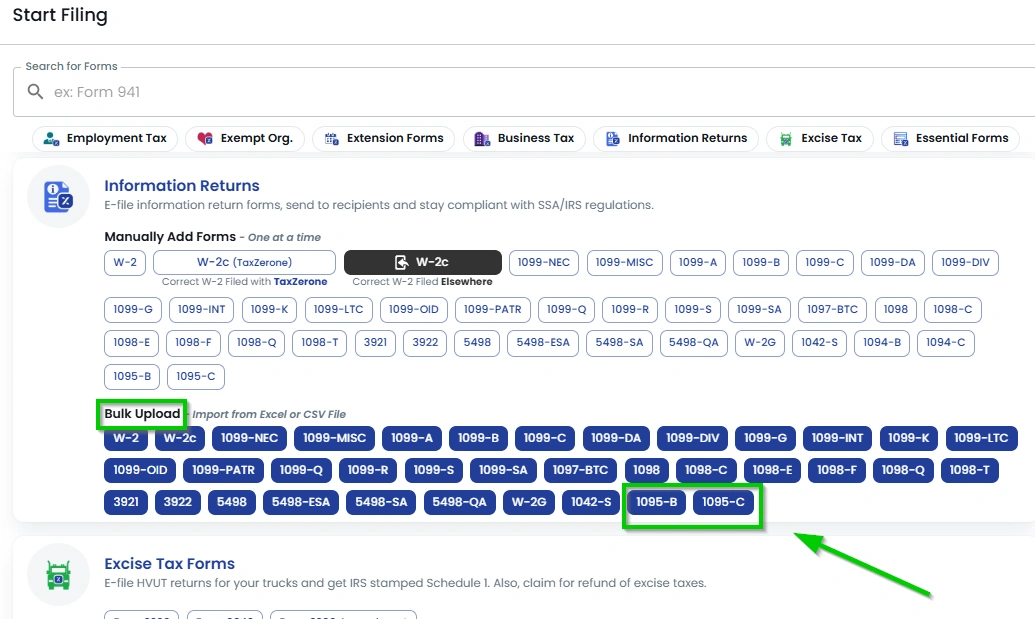
- Under Start Filing, go to Information Returns and Choose Bulk Upload, then select Form 1095-B or Form 1095-C.
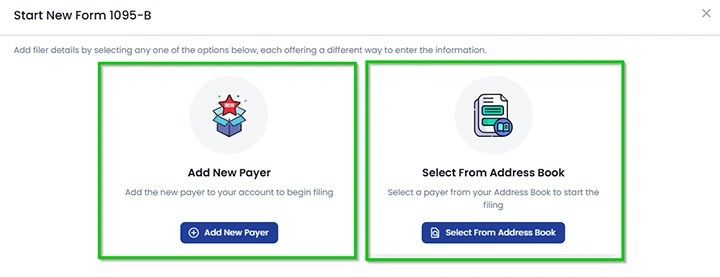
- If you are a new user, click Add New Payer or if you already have a saved payer, select it from the Address Book.
- Select the Tax Year and Choose the business for which you want to file Form 1095-B or Form 1095-C.
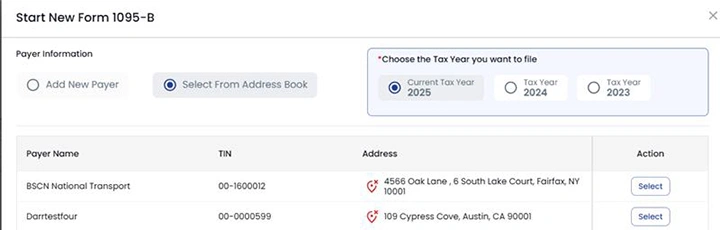
Step 4: Upload Your Completed File
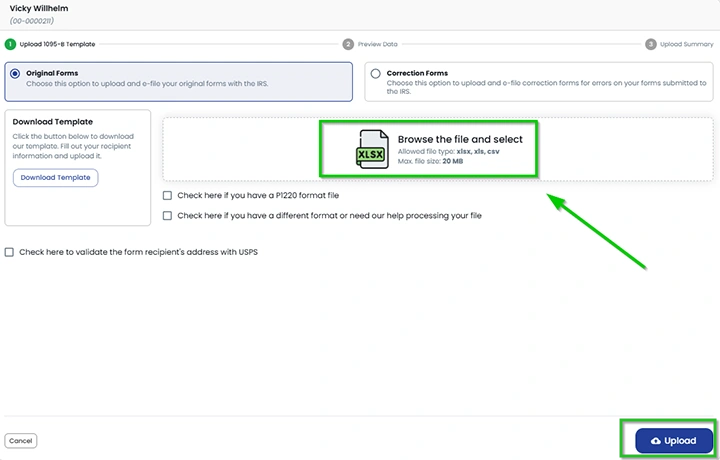
- Click Browse, locate the file you want to upload from your device, and select it. Then click Upload to upload the file successfully.
Step 6: Process Your File
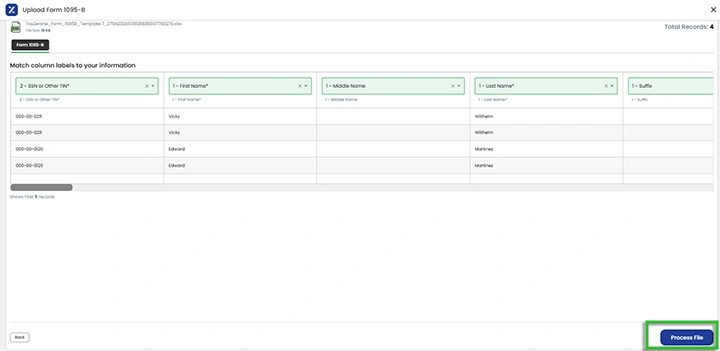
- After reviewing all the records, click Process File to prepare your submission.
- Review the filing summary — confirm the record count, form type, and tax year are correct before proceeding.
Step 7: Review and Correct Errors
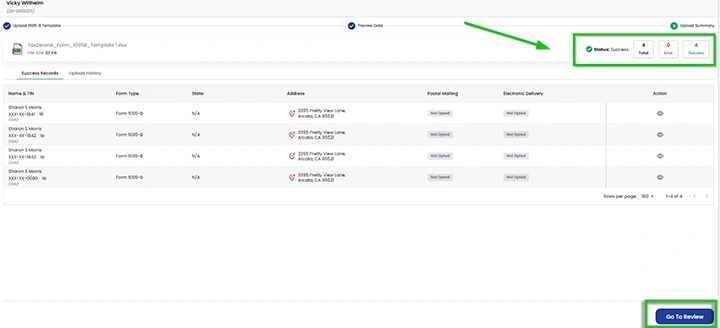
- If errors are found, they will appear in the Error Records tab. Correct them in your Excel file and re-upload it. If no errors are found, you can proceed to the next step.
Step 8: Pay & E-File
- Enter your payment info and click "Pay & e-File" to securely submit your forms. TaxZerone will keep you updated, and you’ll receive confirmation once accepted.
Step 9: Deliver Recipient Copies
- After e-filing, you are required to furnish copies of Form 1095-B or 1095-C to your employees/recipients.
- Review the filing summary and enter the recipient’s email address for electronic delivery through ZeroneVault or provide the postal mailing address if you choose to send the copies by mail.
Understanding Submission Status
You can track your ACA filing progress directly in TaxZerone through the Information Returns Dashboard. Here’s what each submission status means and the action required:
| Status | What It Means | Action Required |
|---|---|---|
| In-progress | Your return is being prepared or validated and has not yet been transmitted to the IRS. | Review the form if needed and complete the filing process. |
| Transmitted | Your return has been successfully sent to the IRS. | Wait for the IRS to process the submission and update the status. |
| Accepted | The IRS has accepted your filing. | No further IRS action is required. Proceed with distributing recipient copies if applicable. |
| Rejected | The IRS has rejected your submission due to errors | Review the rejection details, correct the errors, and resubmit the return through the app. |
ACA Filing Deadlines for Tax Year 2025
| Requirements | Deadlines |
|---|---|
| Furnish recipient copies (1095-B / 1095-C) to employees | March 2, 2026 |
| Paper filing with IRS | March 2, 2026 |
| Electronic filing with IRS (10 or more forms) | March 31, 2026 |
Important:
Failure to file ACA forms on time may result in IRS penalties starting at $340 per return, up to a maximum of $4,098,500 per year for large employers.
E-File Your ACA Forms Today with TaxZerone!
Bulk upload Forms 1095-B and 1095-C quickly and accurately — starting at just $0.59 per form.
IRS-authorized. No tax knowledge is required.